Fix: Windows Recovery Environment (WinRE) Won't Open in Windows 10
Check why Windows 10 recovery will not open, interpret REAgentC status, and reach repair tools from USB without confusing repair with reinstalling Windows.
- Applies to Windows 10
- 5 min read
- 4 steps
View article illustration
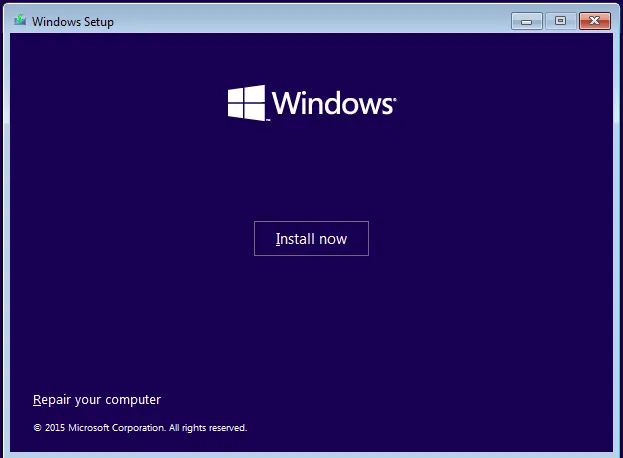
If Windows 10 still starts, check whether its recovery environment is enabled before changing recovery partitions. If Windows cannot start, use installation or recovery media to reach repair tools. Getting into those tools and fixing the local recovery configuration are separate tasks.
Windows 10 context: Normal support ended on 14 October 2025. This guide remains for existing Windows 10 installations; it does not describe newer Windows 11 recovery features.
1. Save your work and try the appropriate entry point
Back up important files while Windows is accessible. If the drive is encrypted, locate its BitLocker recovery key before restarting into repair tools. A recovery USB does not bypass encryption. Microsoft cannot recreate a lost key; check the account or organization that manages the device using Microsoft’s key lookup instructions.
For a working Windows 10 desktop, open Settings > Update & Security > Recovery > Advanced startup > Restart now. Alternatively, hold Shift while selecting Power > Restart from Start or the sign-in screen. WinRE may also start automatically after repeated boot failures.
Record what happens: does Windows return to the desktop, display an error, or reach Troubleshoot > Advanced options? If the menu opens, entry is working; choose a tool for the actual problem rather than changing WinRE configuration unnecessarily.
2. Read the WinRE status from the running Windows installation
If Windows starts, search for Command Prompt, choose Run as administrator, and run:
reagentc /infoThis reports the current installation’s recovery configuration. Save the Windows RE status, Windows RE location, and any error text. An Enabled status reports configuration, not proof that the recovery environment boots successfully.
| Result | Next action |
|---|---|
| Disabled | Try the enable command below once, then recheck status and startup. |
| Enabled, but Advanced startup fails | Record the failure and use external repair media if needed. Do not repeatedly disable and enable it without diagnosing the error. |
| Recovery image not found or another enable error | Keep the exact message. Use recovery media or obtain help checking the installed image and configuration. |
| Windows does not boot | Skip these online commands and use the USB route. Offline repairs need the correct Windows installation and volume identified. |
If status is Disabled, run:
reagentc /enableThen run reagentc /info again. If it now reports Enabled, save your work and retry Advanced startup. Reaching the recovery menu and returning through Continue checks more than the status line alone.
An enable command cannot invent a missing recovery image. Do not download an arbitrary winre.wim, copy a guessed partition path, or delete/resize recovery partitions just to make this command succeed. Those changes require a verified image and a backup appropriate to the machine.
3. Use a USB to reach repair tools
Use an existing recovery drive for this PC, or create Windows 10 installation media on another working computer through Microsoft’s Windows 10 download page. Creating installation media erases the selected USB, so copy off its files first and verify which drive you select.
- Connect the USB and use the PC manufacturer’s boot-menu instructions to start from it.
- With Windows 10 installation media, choose the language and keyboard options, then continue to the Setup screen.
- Choose Repair your computer, shown at the lower left in the preserved image below.
- Open Troubleshoot > Advanced options. A recovery drive can take you directly to recovery menus instead of showing Setup.
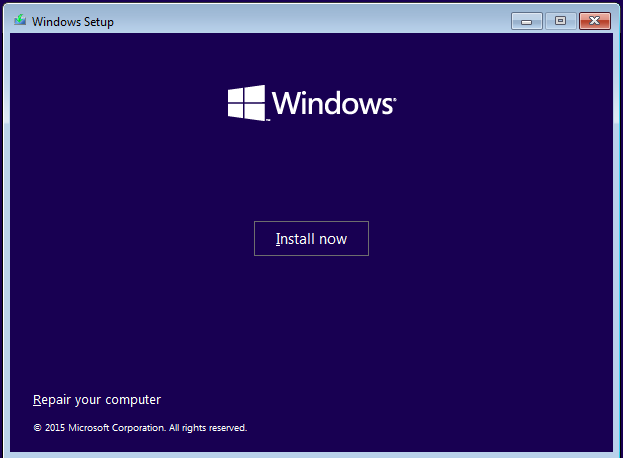
Opening repair tools does not require choosing Install now, deleting a partition or resetting the PC. If Setup asks you where to install Windows, stop: you have entered the installation route. Return to the repair option.
Use Startup Repair for a Windows boot failure. If the objective was simply to get into WinRE, stop once the tools are accessible. Booting successfully from USB does not repair or verify the WinRE copy on the internal drive; retest Advanced startup separately after any local repair.
4. Check system files when Windows still starts
If damaged Windows components are suspected, use Microsoft’s repair sequence from an elevated Command Prompt in the running Windows installation. Start with:
DISM.exe /Online /Cleanup-Image /RestoreHealthAfter DISM completes successfully, run:
sfc /scannowAllow the scan to finish and record the result. Restart, then retest Advanced startup. If DISM fails, save its error rather than substituting a guessed repair-source path. These commands are not a promise to recreate a deleted recovery partition or image.
Do not paste this online sequence into a USB recovery prompt expecting it to target the installed Windows automatically. Offline servicing has different targeting requirements.
If recovery still will not open
Give support the Windows version, whether the desktop still starts, REAgentC status/location, exact error, and whether the USB repair menu works. Include any recent disk cloning or partition changes. That evidence helps distinguish a local configuration issue from a broader boot or storage problem. Keep recovery keys private when sharing screenshots or logs.
Documentation review: 13 November 2026. Entry points, REAgentC and the repair-command sequence were checked against Microsoft documentation. The decision workflow is editorial guidance; no recovery, reset or device test is claimed.
Official references
Microsoft Support — Windows Recovery EnvironmentEntry points and external recovery media Microsoft Learn — REAgentC optionsStatus, enable and online/offline scope Microsoft Learn — Windows RE technical referenceRecovery architecture and Windows 10 entry points Microsoft Support — System File CheckerDISM before SFC in the running installation
Did this fix it?
This feedback stays on this page; it isn’t sent to us.Related posts
Browse all articles →
Fix Windows Boot Error 0xc0000225 in Windows 10 or 8.1
Troubleshoot boot error 0xc0000225 with Startup Repair first, then repair Boot Configuration Data only when needed.

Fix a Blank Screen or Startup Failure in Windows 8 After an Improper Shutdown (Historical)
Historical Windows 8 startup-recovery guidance for a blank screen or failure to boot after a crash, power loss, shutdown, or hibernation problem.
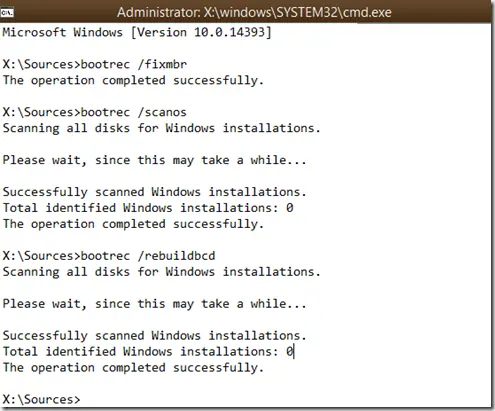
How to Rebuild the BCD in Windows 10 or Windows 8.1
Repair Boot Configuration Data from Windows Recovery Environment, using Startup Repair first and Bootrec or BCDBoot only when needed.