How to Roll Back a Driver in Windows 10 or 11
Check whether a driver rollback fits your symptoms, restore the previous version in Device Manager, and verify the result before trying another package.
- Applies to Windows 10
- 4 min read
- 3 steps
View article illustration
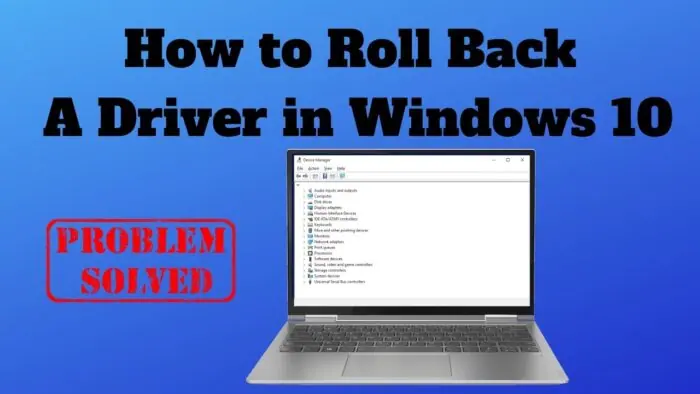
If one device stopped working just after its driver changed, rolling back that driver is a useful test. First identify the affected device and record the current version. Change one driver, restart if requested, then repeat the task that failed so you can tell whether the rollback helped.
This guide covers ordinary device drivers in Windows 10 and 11. BIOS and firmware updates need the manufacturer’s model-specific recovery instructions; do not treat them as an ordinary driver rollback.
Decide whether rollback fits the problem
| What happened | Next action |
|---|---|
| A previously working device failed directly after its driver update | Record its driver details, then check Roll Back Driver. |
| The device has never worked on this installation | Confirm the exact hardware and obtain the appropriate driver; there may be no working version to return to. |
| Several devices or apps changed at the same time | Record the update history and isolate a repeatable symptom before changing more packages. |
| Windows cannot reach the desktop | Use Windows recovery options rather than expecting to follow a desktop Device Manager procedure. |
For example, if Wi-Fi disconnects after a wireless-driver update while audio still works, investigate that adapter first. This is an illustrative decision, not evidence that a particular driver version is defective.
1. Record the device and prepare a fallback
Save your work and keep a laptop connected to power. On a managed work or school PC, use the organization’s support process before replacing drivers.
Right-click Start > Device Manager, expand the relevant category and open the affected device’s Properties > Driver tab. Note the full device name, driver provider, date and version. Also record any error on the General tab and what task reproduces the problem. If several adapters have similar names, confirm which one is affected before continuing.
For a network adapter, download any needed manufacturer installer before making changes, or arrange another way to get online. Keep it somewhere you can access without that connection. For a display or input device, avoid starting a change during work that depends on uninterrupted access to it.
2. Roll back the selected driver
Administrator permissions are required.
- In the affected device’s Properties, open Driver.
- Select Roll Back Driver.
- Choose the reason that describes your problem and confirm with Yes.
- Let Windows complete the operation and restart if prompted. Save any remaining work before restarting.
The operation targets the device-driver software. It is not a file-recovery tool, a BIOS downgrade or a way to undo every change made by Windows Update.
3. Check whether the original problem is gone
Reopen the same device’s Driver tab and record the resulting version. Repeat the same failing task under similar conditions: reconnect to the same Wi-Fi network, play audio through the same output, or open the same app on the same display.
Record three things: version before and after, whether the symptom changed, and any new problem. A successful restart alone is not enough to show that an intermittent issue is fixed. Observe the next few normal sessions before considering it resolved.
If the version did not change or the symptom remains, keep that evidence. Avoid cycling through unrelated audio, graphics and network packages; doing so makes the cause harder to identify. A rollback that helps points toward the changed software, but it does not establish that every PC using that version has the same fault.
If Roll Back Driver is unavailable
Dell’s documented Windows rollback procedure explains that a disabled button means the previous driver is not available on the computer. Repeatedly opening Device Manager will not create that package.
Look up the exact PC model and Windows version on the manufacturer’s support site. Check whether it offers a compatible earlier package or a documented corrective release. Use its installation instructions: some installers handle replacement directly, while others specify removal first. Downloading a package is a preparation step, not a reason to uninstall the current driver immediately.
Do not delete driver packages or uninstall a storage controller to force the rollback button to appear. If the manufacturer provides no suitable package, stop and ask its support team with the device details and version comparison. Avoid third-party driver-download mirrors.
If a newer corrective release is offered through Windows Update, check that it addresses your device and issue. The Windows 11 optional-driver guide explains how to assess that list. Do not install every optional update or disable all Windows updates to preserve one older driver.
For a PC that no longer starts, consult Microsoft’s recovery options. A restore operation has a wider scope than a single driver change; read its effects before applying it.
Documentation review: 13 November 2026. Microsoft and Dell instructions were checked. The evidence-recording and comparison workflow is editorial guidance; no driver installation, rollback or hardware test is claimed.
Official references
Microsoft Support — Device Manager driver updates and rollbackAdministrator requirement and rollback controls Dell Support — Roll back a device driverPrevious-version availability and manufacturer recovery guidance
Related posts
Browse all articles →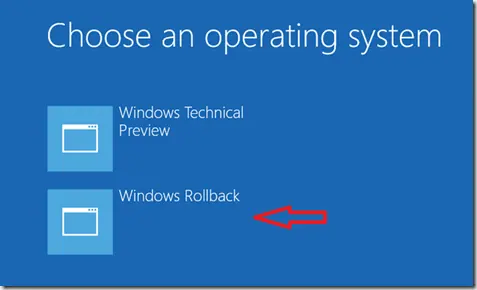
How Windows 10 Technical Preview Rollback Worked in 2015 (Historical)
A historical explanation of the Windows Rollback boot entry that appeared on some early Windows 10 Technical Preview systems, plus the modern Go back equivalent.
How to Find and Install Optional Driver Updates in Windows 11
Windows 11 installs recommended drivers automatically, but some newer or alternative drivers appear under Optional updates. Here is when to use them.
Fix DRIVER_PORTION_MUST_BE_NONPAGED in Windows 10
Troubleshoot the DRIVER_PORTION_MUST_BE_NONPAGED (0xD3) stop error in Windows 10 by isolating drivers and recent hardware changes.