iCloud Photos vs iPhone Storage: Why Photos Still Take Space on Your iPhone
iCloud Photos is a synchronized photo library, not an external hard drive. Learn how Optimize iPhone Storage works and why deleting photos deletes them from iCloud too.
- 6 min read
View article illustration

A larger iCloud plan does not enlarge your iPhone. Before changing anything, compare three things: free space on the phone, free space in iCloud, and the Photos sync status. Each points to a different next action.
Documentation review: 13 November 2026. This guide combines Apple's documented behavior with an editorial worksheet and illustrative examples. The numbers below are not measurements from a device test.
Why a synced library still uses phone storage
iCloud Photos synchronizes one library. With Optimize Storage enabled, iCloud holds full-resolution originals while the phone can keep smaller versions. Apple says optimization happens when space is needed, starting with less-accessed items. It does not provide a fixed target size or a guaranteed amount you will recover.
Do not delete photos to remove only their phone copies. Deletions synchronize across devices using iCloud Photos. Recently Deleted normally offers a 30-day recovery window, not an independent backup. Photos in iCloud Photos are also not duplicated in iCloud Backup.
Read these three indicators before choosing a fix
| Indicator | Where to look | Record privately |
|---|---|---|
| Physical phone storage | Settings → General → iPhone Storage | Used/total, Photos size and the largest other category |
| Cloud allowance | Settings → your name → iCloud | Used/total and any storage warning |
| Photos progress | Photos → Collections → profile, on current versions | Exact status, time checked, and whether a recent item appears at iCloud.com |
In iOS 18, the profile button is in Photos; in iOS 17 or earlier, check the bottom of Library → All Photos. Interface labels vary. A single item appearing on the web confirms that item's presence, not the completion of every upload.
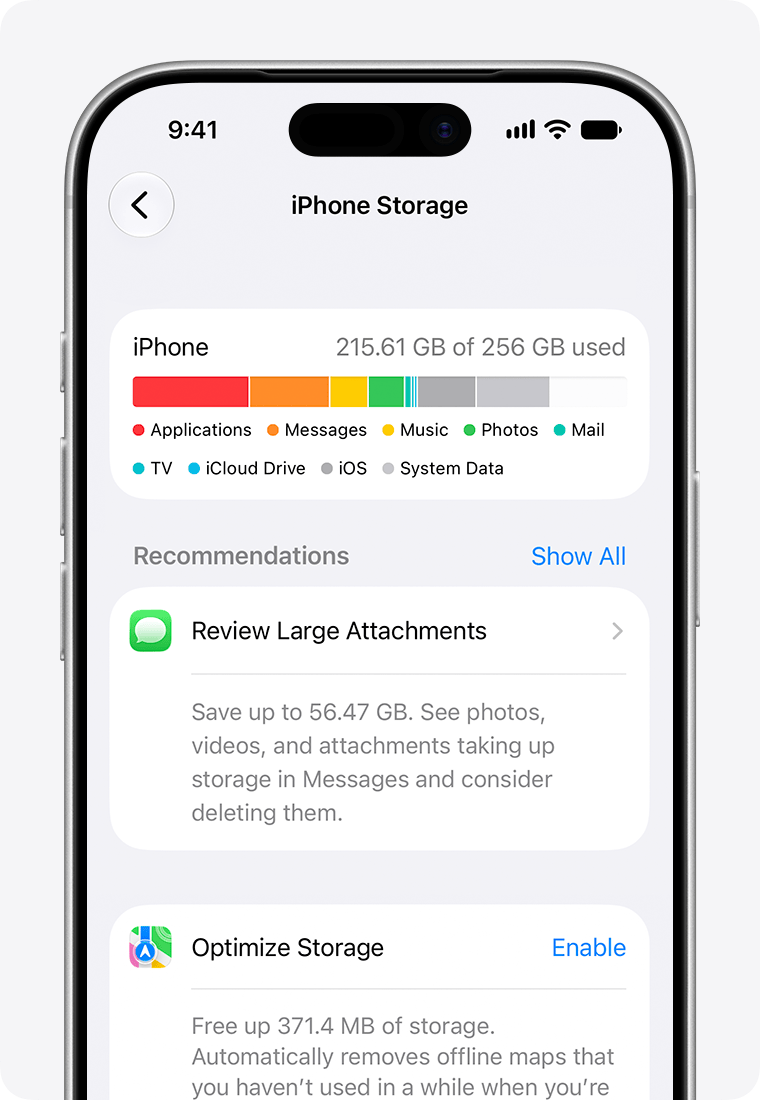
Use the same settings screens for before/after comparisons. Apple notes that computer-based storage displays can categorize cached content differently, so comparing their category totals with the phone can be misleading.
Choose the action that matches the evidence
| What you find | Useful next action | Avoid |
|---|---|---|
| Phone nearly full; iCloud has room | Check optimization and phone storage recommendations | Buying more cloud space solely to enlarge local capacity |
| iCloud full; Photos says syncing paused | Resolve cloud capacity, then recheck progress | Assuming recent photos have already uploaded |
| Both have room; Photos says low battery or poor network | Address the displayed pause reason | Deleting the library to restart synchronization |
| Sync complete; optimization on; Photos still occupies space | Judge by usable free space and the task that was blocked | Treating any nonzero Photos size as failure |
Check optimization without switching off sync
Go to Settings → your name → iCloud → Photos. Check that sync is enabled and choose the optimization setting. Some versions place it under iPhone Storage; in iOS 26 or earlier, Optimize Storage is directly available. Download and Keep Originals serves a different goal: keeping originals locally, with the space that requires.
Once the intended option is selected, record it and leave it stable. Repeatedly changing settings makes a useful before/after comparison harder. If uploads are still pending, follow the separate missing-photos and sync guide rather than treating the local size as an upload verdict.
If synchronization is paused
Read the exact message. Apple identifies battery, data-saving, network, temperature and cloud-capacity conditions that can pause Photos. Charge a low battery; allow an overheated device to cool. Use the offered Sync Now option only where appropriate, or let the device resume under better conditions.
For a large pending library, Apple recommends power, Wi-Fi and an uninterrupted overnight sync. That is a synchronization troubleshooting step, not a promise that Photos will shrink to a particular size overnight. Do not turn iCloud Photos off as a routine reset.
Worked examples: what the numbers do and do not tell you
These are invented arithmetic examples for interpreting your own readings, not device benchmarks or recovery estimates.
Example A: cloud space is not the limiting resource
A phone reports 126 GB used out of 128 GB; iCloud reports 80 GB used out of 200 GB. That leaves roughly 2 GB on the phone and 120 GB in the cloud. The two amounts cannot be added together to install an app on the phone.
If Photos uses 18 GB and another app uses 35 GB, investigate both local categories. The numbers alone do not establish how much of Photos can be optimized or whether the other app's data can safely be removed.
Example B: a larger Photos category does not prove missing uploads
Photos occupies 30 GB, optimization is enabled, and the phone has 60 GB free. A recent image is visible at iCloud.com and the library reports synchronization complete. There is no evidence here that deleting local photos is necessary. Check whether your actual task is blocked before trying to force a smaller category.
Example C: phone free space does not clear a cloud limit
The phone has 40 GB free, but iCloud is at its limit and Photos reports paused syncing. Removing a downloaded movie from the phone does not, by itself, increase the cloud allowance. Address the cloud usage first; do not delete unsynced pictures under the assumption that they are protected elsewhere.
If you need working space immediately
Review iPhone Storage recommendations and inspect content you can safely obtain again, such as downloaded media. Read the action carefully: Apple distinguishes offloading an app, which retains its documents and data, from deleting it and its related data. Avoid removing the only copy of an important document.
Pick one reversible cleanup, record the new free space on the same screen, then retry the operation that was failing. Do not use a promised percentage reduction in Photos as your success criterion. If the operation still fails, retain its exact error and storage requirement for the next check.
Verify a separate copy before major library changes
If you need an independent archive, follow Apple's export/download instructions and store it outside the synchronized library. Open representative photos and videos from that destination before depending on it. A preview on another synced device does not establish that an offline original or separate backup exists there.
Keep this short record for support: device/iOS version → local free space → cloud free space → Photos setting → exact sync message → time → one change → result. You can share those observations without uploading your photo library or exposing your Apple Account address.
Official references
Apple — Set up and use iCloud PhotosOptimization, original files, deletion and backup behavior Apple — iCloud storage versus device storageSeparate quotas and where to read each Apple — Check iPhone and iPad storageStorage categories, recommendations and offloading Apple — Photos sync pausedLibrary status and condition-specific next actions Apple — Access iCloud PhotosAccessing your synchronized library Apple — Turn off iCloud PhotosRead the consequences before changing synchronization Apple — Download iCloud photos and videosDownload and export copies before relying on a separate archiveRelated posts
Browse all articles →
How to Fix iCloud Photos Not Syncing or Photos Missing Across Devices
Missing iCloud photos or devices out of sync? Check Apple Account, sync status, storage, Shared Library, Recently Deleted, network, and iCloud for Windows before resetting anything.
Gmail Storage Full? Free Up Space Without Losing Important Mail or Photos
Find what is filling your Google Account and recover Gmail storage without deleting mail, Drive files, or photos you still need.
Mac System Data Taking 100GB or More? Find the Cause Without Deleting macOS Files
Find what is using your Mac storage, understand System Data and Time Machine snapshots, and reclaim space without deleting important macOS or project files.