How to Improve Windows 11 Battery Life with Energy Saver and Energy Recommendations
Choose Windows 11 battery settings that fit your workload, fix an unavailable power-mode control, and compare battery drain before and after each change.
- Applies to Windows 11
- 5 min read
- 5 steps
View article illustration
Start with a comfortable lower brightness and a power mode that suits your work, then compare a normal battery session before changing more settings. Energy saver can help when charge is running low, but its background-activity restrictions may affect work you expect to finish.
This guide covers Windows 11. Energy saver replaces Battery saver in version 24H2 and later; an older installation may show the earlier name. Check Settings > System > About if your controls differ.
1. Choose the first change for your situation
| What you notice | Start here |
|---|---|
| You need the remaining charge to last until a charger is available | Energy saver, with a brightness level you can comfortably read. |
| Ordinary browsing or writing uses too much battery | Compare Best power efficiency with your current mode using the same work. |
| The screen stays bright or on while you are away | Display brightness and on-battery screen-off/sleep timers. |
| Drain increased suddenly with an app or workload change | Battery usage by app before changing every power setting. |
| Runtime has declined over months, or drain happens with the lid closed | Battery capacity or sleep diagnostics linked below. |
2. Set Energy saver and power mode separately
- Open Settings > System > Power & battery > Energy saver.
- Choose when it should turn on automatically, or turn it on for the current session. Check whether its screen-dimming option suits your lighting.
- Check the apps you depend on. On low battery while unplugged, Energy saver can pause some background activity and syncing; confirm important files have synced before putting the laptop away.
Power mode unavailable? Windows prevents power-mode changes while Energy saver is on. If you want to choose a different mode, temporarily turn Energy saver off, change the mode, then restore your preferred saver setting.
In Power & battery > Power mode, choose Best power efficiency for battery use and try your normal task. Return to Balanced if the response or performance is unsuitable. Some versions show separate plugged-in and on-battery choices; change the one relevant to your comparison. Energy saver can also run while plugged in, but that is an energy-use choice, not a battery-runtime test.
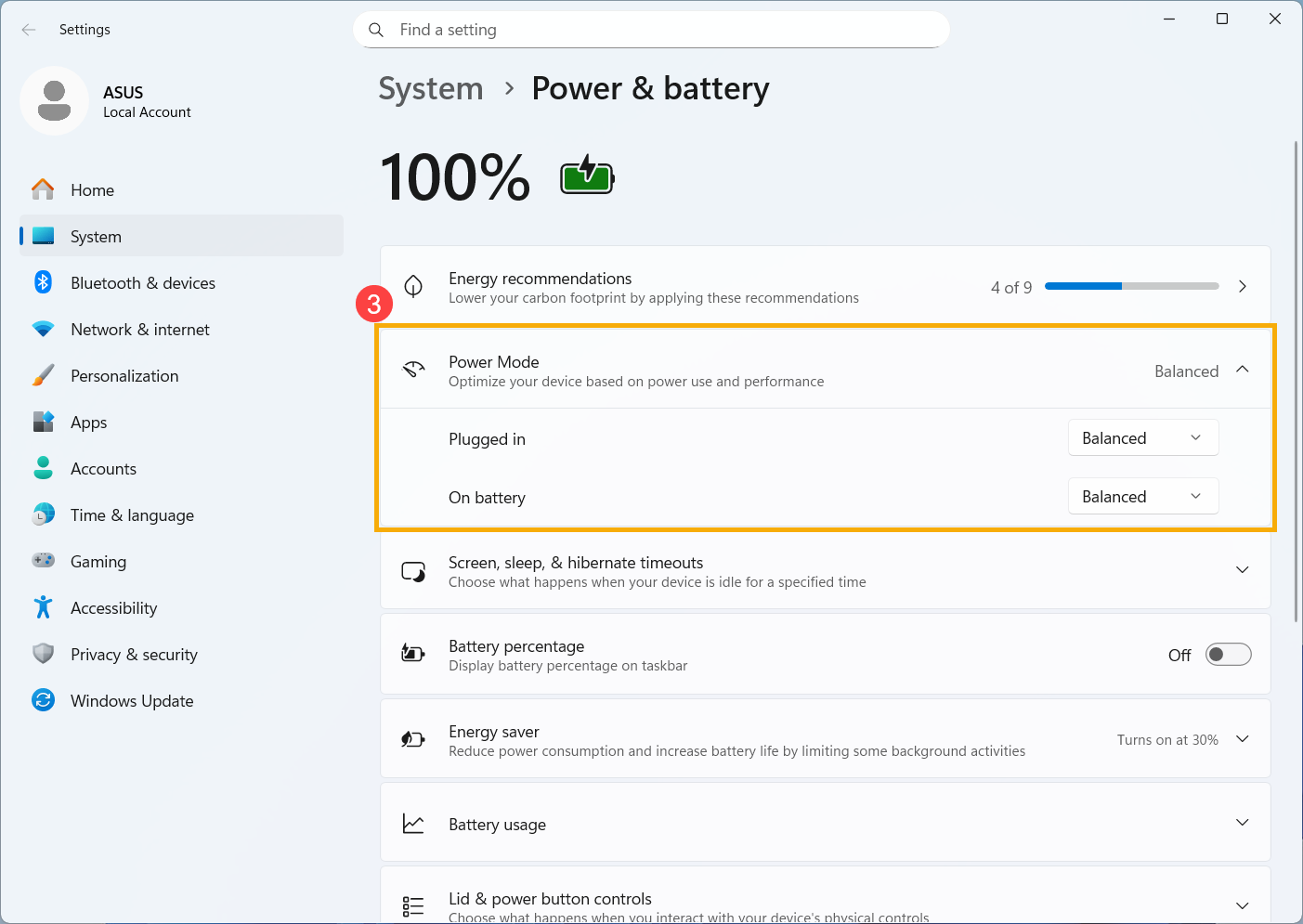
If power mode remains unavailable with Energy saver off, Microsoft notes that a custom power plan can be the reason. Record the existing selection in Control Panel > System and Security > Power Options before trying Balanced. Do not delete an OEM plan to make this control appear.
3. Apply useful Energy recommendations individually
Open Settings > System > Power & battery > Energy recommendations. The choices depend on the device, sensors and whether it is running on battery. A missing recommendation does not by itself indicate a fault.
Read each proposed change before applying it. For example, a shorter screen-off timer is useful when you leave the desk, but an extremely short timer can interrupt reading. Content-adaptive brightness may be distracting during photo work. Record your previous setting so you can undo an unhelpful recommendation. You do not need to apply every item to make a useful improvement.
4. Adjust the display without losing usability
Lower brightness to a readable level and shorten the on-battery screen-off and sleep timers. Treat those as separate choices: switching off the display and putting the whole device to sleep are different actions.
Under Settings > System > Display > Advanced display, try Dynamic refresh rate if Windows offers it. DRR needs a display supporting variable refresh rate and at least 120 Hz; a 60 Hz panel will not gain that capability through a power setting. If DRR limits the refresh rate in a game, switch it off for that use. When comparing battery drain, keep the display configuration the same apart from the setting you deliberately change.
5. Read app usage in context
In Power & battery > Battery usage, inspect the period when drain was unusually high. An app used for most of that period can reasonably account for a large share; look for unexpected background use rather than treating the top app as automatically faulty.
Where offered, an app’s More options > Manage background activity control lets you adjust background permissions. It is not available for every app. Change one suspect app at a time and check that notifications or work you need still arrive. Do not disable security protection to chase a lower battery-use number.
Compare the result with your usual session
Use this small worksheet in a note. Run the same kind of work for the same duration, starting at a similar charge level. Record update installations, video calls or other unusually demanding tasks so you do not mistake a different workload for a settings improvement.
| Record | Before | After one change |
|---|---|---|
| Task and elapsed time | Your normal task and duration | Same task and duration |
| Starting and ending charge | Write both percentages | Write both percentages |
| Display, mode and saver state | Record current settings | Name the single change |
| Usability and interruptions | Normal response and app behavior | Any slowdown, dimming or missed sync? |
Subtract ending charge from starting charge to compare percentage-point drops. One small difference is not proof: repeat on another comparable session before keeping a setting that makes the laptop less useful. There is no need to drain the battery to zero, and this check does not promise a particular number of extra hours.
If the results remain poor, use the Windows battery report guide to separate capacity loss from increased consumption. Settings cannot restore worn-out capacity. If most drain happens while the laptop should be asleep, follow sleep and Modern Standby diagnostics instead.
Documentation review: 13 November 2026. Settings and hardware limits were checked against Microsoft documentation. The comparison worksheet is an editorial method, not a measured runtime result. The screenshot is credited to ASUS; this review does not claim hands-on laptop testing.
Official references
Microsoft Learn — Energy saverWindows version, power-mode restriction and background behavior Microsoft Support — Change power modeMode choices and custom-plan limitations Microsoft Support — Energy recommendationsDevice-dependent choices and their effects Microsoft Support — Display refresh rateDRR requirements and gaming limitations Microsoft Support — Battery saving tipsDisplay settings and supported background-app controls
Related posts
Browse all articles →
Improve Laptop Battery Life in Windows 8, 7, Vista, and XP — Historical Guide
Historical battery-life troubleshooting for Windows 8, 7, Vista, and XP laptops, focusing on power settings, brightness, background activity, devices, and battery health.
How to Check Laptop Battery Health with the Windows 11 Battery Report
Generate a Windows 11 battery report with powercfg and compare design capacity, full charge capacity, usage history, and estimated battery life.
How to Troubleshoot Windows 11 Sleep, Wake, and Modern Standby Problems
Windows 11 waking by itself, refusing to sleep, or draining battery overnight? Use powercfg and SleepStudy to identify the real cause before changing settings.