Quick Share Between Android and Windows Not Working? Complete Setup and Troubleshooting Guide
Fix Quick Share between Android and Windows when devices cannot see each other, notifications do not appear, or transfers are slow or fail.
- 5 min read
- 5 steps
View article illustration
Find your next check Optional diagnostic helper
Choose what you have actually observed. This suggests a diagnostic branch; it does not test your equipment or identify a fault automatically.
No passwords, addresses or reports are requested. Your selections are not sent or saved. Changing a selection clears the previous result.
Start with the point where sharing stops: does the other device never appear, appear without accepting, or accept and then fail? Those are different problems. Repeat one harmless, small-file transfer before changing settings.
Documentation review: 13 November 2026. The diagnostic sequence and worked examples below are editorial guidance based on the linked official documentation, not results from a new hardware test.
Choose the failing stage
| Observed result | Next check | What it does not prove |
|---|---|---|
| The receiver never appears | Receiving app, visibility and nearby-device setup | That the file is too large or Windows needs reinstalling |
| The receiver appears, but the sender waits | Receiver's app and acceptance state | That Bluetooth discovery failed |
| Transfer starts, then stops | Repeat with a small local file; record the exact error | That all visibility settings are wrong |
| Completed, but the file seems missing | Receiver's saved-file location and file contents | That another transfer is necessary |
Record direction → receiver listed? → accepted? → progress started? → exact result. “Not checked” is a useful answer. A successful PC-to-phone transfer does not establish that phone-to-PC receiving is configured correctly.
1. Confirm the app and a repeatable test
Use Google's Quick Share for Windows on a compatible PC; Google directs Samsung PC owners to Samsung's Store app. Its published baseline is 64-bit Windows 10 or newer, with Windows 11 required on ARM, and Android 6 or newer. Do not run the app as administrator. Check Google's requirements before changing drivers.
Windows Nearby sharing is a separate PC-to-PC feature. Its settings are not the receiving controls for Google's Android transfer app. Microsoft describes the Windows feature here.
Choose a small, non-sensitive photo or text file that is already stored locally. Use that same file and direction for each comparison. Keep a large video for a later test; downloading a cloud-only source file at the same time introduces another variable.
2. If the receiver is missing
Check receiving visibility on the destination, not just the sender. On Windows, Your devices uses the same Google Account; No one prevents discovery. Keep Bluetooth enabled, bring the devices within 30 cm, and use the same trusted network for the baseline. Google notes that some Bluetooth adapters have discovery limitations on certain networks.
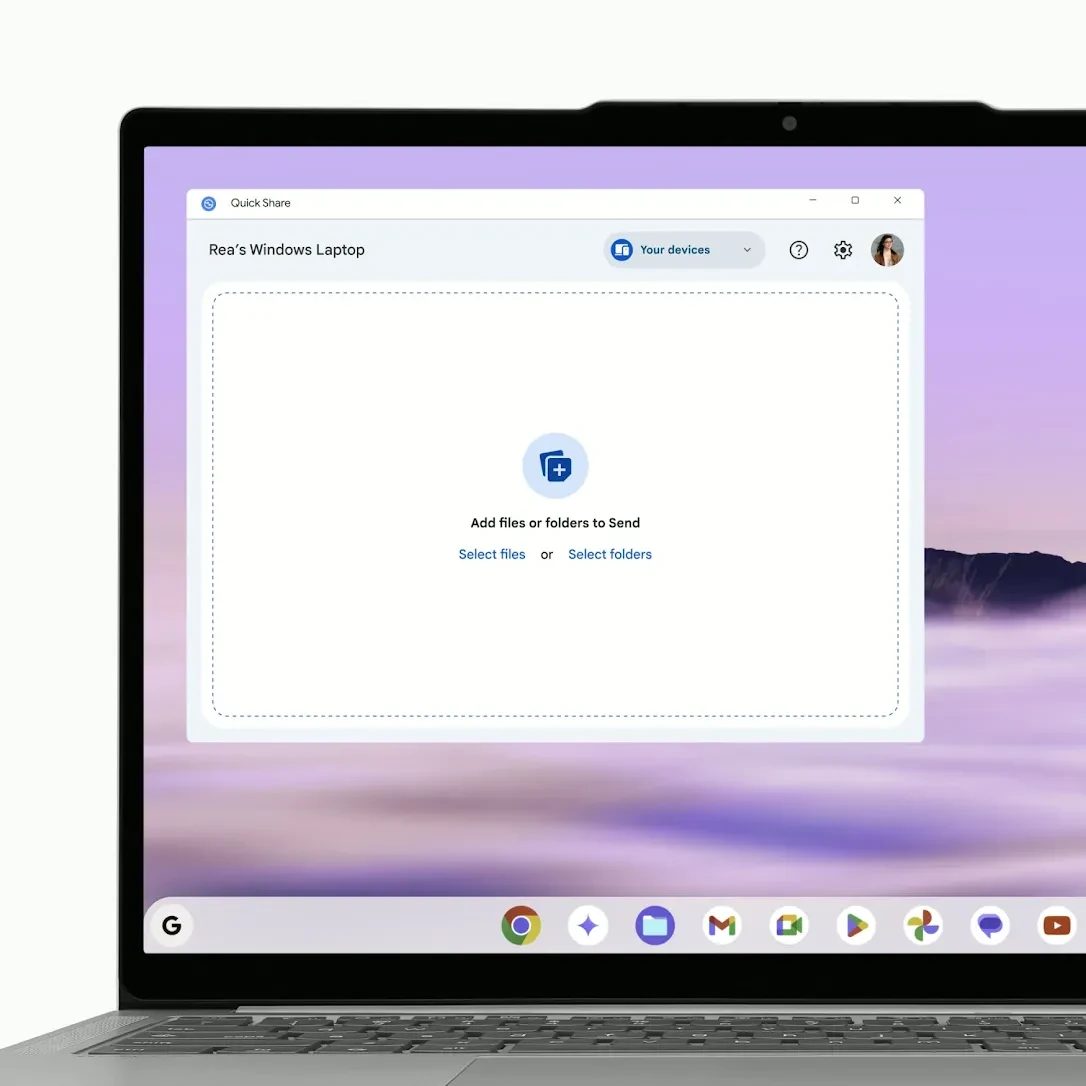
For a controlled visibility comparison, broaden the receiver's visibility briefly, retry once, and then restore the narrower setting. If that alone changes the result, investigate the intended account/contact relationship. Do not leave broader visibility enabled as the permanent fix.
Quit and reopen the app if its state is unclear. Avoid changing visibility, network and app version together: a successful retry would not tell you which change mattered.
3. If it waits for acceptance
Open the receiving app and inspect the request. Same-account transfers can accept automatically, so the absence of an Accept prompt is not necessarily a fault. For other transfers, verify any matching PIN before accepting. If Windows notifications are missing, check Quick Share notification permission and Do Not Disturb. Completed Windows downloads normally appear in Downloads → Quick Share.
Follow the transfer's status rather than judging success by a pop-up. After completion, open the received file and confirm it is the one you selected. Keep the source until you have done that.
4. Compare networks without resetting them
Google suggests a phone-hotspot comparison for networks that prevent devices communicating: disconnect the phone from Wi-Fi, enable its hotspot, then connect the PC. Use this only where permitted; background PC traffic may use mobile data.
Retry the same file, direction and visibility. If it works on the hotspot and fails again on the original network, the network environment deserves attention. That does not isolate a particular router setting: routing, access rules and VPN behavior can also differ between the two connections.
On a managed network, give IT the comparison result. Do not disable the firewall, remove a required VPN or change a public network to Private simply to make sharing work. If wider connectivity is failing too, use our Wi-Fi diagnostic guide separately.
5. If a small file succeeds but a large file fails
Discovery and at least one transfer worked. Keep that working configuration and inspect the receiving device's free space, the source file's local availability, the exact failure message and whether either device disconnected or slept during the attempt.
Try another non-sensitive file of a similar size. If only one file fails, keep a copy and investigate that item; if several fail, record their sizes and the point where progress stops. Neither result alone proves a storage or radio fault. A slow transfer also does not establish which radio carried its data.
Worked examples: interpreting the comparison
Illustrative examples, not reported customer incidents or measured benchmarks:
- The PC can send, but cannot receive. Keep the successful direction as a baseline. Check the PC's receiving visibility and account, then send the same small file back. Do not reset the phone merely because the reverse direction failed.
- A test photo succeeds on a hotspot only. Repeat on the original network once. If the contrast repeats, report both outcomes to the network owner. “Different network works” is evidence for the next investigation, not proof of client isolation.
- The app reports completion without a notification. Check the receiver's file location first. If the expected file opens correctly, fix notifications only if you need them; do not disturb a working transfer path.
What to keep if you need support
Keep a private note of PC model, Windows version, phone model, Android version, Quick Share app/version, transfer direction, file size, exact error and the small-file/network comparisons. Redact account names, device identifiers and private filenames before posting publicly.
Stop once the original task works reliably. A second network, another phone or a second PC can narrow the issue further, but an unavailable comparison must remain “not checked.” The optional helper follows these same limits and does not scan your devices.
Official references
Google Support — Quick Share setup and troubleshootingApp selection, requirements, visibility, acceptance, notifications and network comparison Android — Quick Share for WindowsOfficial download and transfer walkthrough; source of the credited screenshot Microsoft — Nearby sharing in WindowsThe separate Windows PC-to-PC featureDid this fix it?
This feedback stays on this page; it isn’t sent to us.Related posts
Browse all articles →
RCS Between iPhone and Android Not Working? Fix Missing Features, Photos, and Group Chats
Fix RCS messaging between iPhone and Android by checking carrier support, activation, data connectivity, group participants and SMS/MMS fallback.
How to Transfer an eSIM to a New Android Phone—and Fix Activation Problems
Move an eSIM to a new Android phone during setup or later, understand carrier requirements, and troubleshoot activation without deleting the working line too early.
Android Find Hub Offline Finding: Locate a Lost Phone or Tracker Without Exposing Your Privacy
Set up Android Find Hub offline finding, understand location timestamps and sharing, and prepare secure account access before a phone or tracker goes missing.